123hp.co.uk
123hp.co.uk
123.hp.com/dj2600 – HP Deskjet 2600
HP DeskJet 2600 Printer Setup, Driver & Troubleshooting
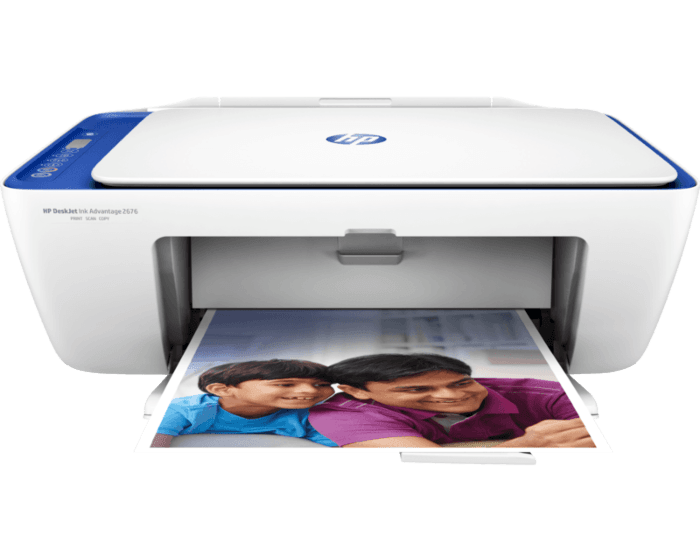
The HP DeskJet 2600 All-in-One Printer series is designed for everyday home printing, scanning and copying. If you are having difficulty setting up your HP DeskJet 2600, installing the printer software, connecting it to Wi-Fi, printing from Windows 11, scanning documents or resolving an offline printer problem, this guide provides practical support information.
HP provides setup and user-guide documentation for the DeskJet 2600 series, including a user guide, getting started guide and setup poster.
Independent HP Printer Support: 123hp.co.uk provides independent technical support for HP printers. We are not affiliated with, authorised by, sponsored by or endorsed by HP Inc.
HP DeskJet 2600 Setup
Setting up an HP DeskJet 2600 involves preparing the printer, installing the appropriate printer software and connecting the printer to your computer or wireless network.
Before beginning setup:
Turn on the printer.
Install the ink cartridges correctly.
Load suitable paper.
Make sure the printer does not display an error.
Connect your computer to the internet if software installation requires it.
Make sure your Wi-Fi router is working correctly.
Keep the printer reasonably close to the router during wireless setup.
The exact setup process can vary depending on your operating system and whether you use Wi-Fi or USB.
HP DeskJet 2600 Driver Installation
A printer driver allows Windows or another operating system to communicate with the printer.
Driver problems can cause messages such as:
Driver unavailable
Printer not detected
Printer offline
Driver installation failed
Printer cannot communicate
Printer not found
For official drivers and software, use HP’s official support resources.
If the driver installation repeatedly fails, simply reinstalling the same software may not solve the problem. Previous printer installations, Windows configuration, security software or network settings may also need to be checked.
HP DeskJet 2600 Windows 11 Setup
Windows 11 may automatically detect the printer, but the printer can still require additional configuration.
Open:
Settings → Bluetooth & devices → Printers & scanners
Check whether your HP DeskJet 2600 appears.
If it appears but will not print, check the printer status and print queue.
If it does not appear, the issue may involve:
Driver installation
USB connection
Wi-Fi connection
Printer discovery
Windows settings
Network configuration
If the printer stopped working after a Windows update, check the existing printer installation before removing everything and starting again.
HP DeskJet 2600 Wireless Setup
Wireless setup allows the printer to communicate with computers and other devices over Wi-Fi.
The printer and computer generally need to communicate through the same appropriate wireless network.
Wireless problems are particularly common after replacing a router or changing a Wi-Fi password.
Check:
Wi-Fi network name
Wireless password
Router status
Printer wireless status
Computer network connection
Distance between printer and router
If your computer is connected to the internet but the printer remains offline, the printer’s network configuration may need to be checked.
HP DeskJet 2600 Not Connecting to Wi-Fi
If your HP DeskJet 2600 cannot connect to Wi-Fi, determine whether other devices can connect to the same network.
If your phone and computer connect successfully but the printer does not, the issue may be specific to the printer’s wireless configuration.
Problems can occur after:
Router replacement
Wi-Fi password change
Broadband upgrade
Network name change
Router reset
Moving the printer
The printer may still contain the previous wireless configuration.
HP DeskJet 2600 USB Setup
A USB connection provides an alternative to wireless printing.
If Windows does not recognise the printer through USB:
Make sure the printer is powered on.
Check the USB cable.
Try another USB port.
Check Windows printer settings.
Check for previous printer installations.
Check whether the printer software installed correctly.
If the printer works through USB but not Wi-Fi, this can help narrow the problem to the wireless connection or network configuration.
HP DeskJet 2600 Printer Offline
An offline printer can be caused by several different problems.
Possible causes include:
Lost Wi-Fi connection
Incorrect network
Router changes
Stuck print queue
Incorrect printer selected
Windows configuration
Driver or software problems
If your printer repeatedly changes from online to offline, the underlying communication problem should be investigated.
HP DeskJet 2600 Not Printing
If your printer is connected but does not print, check:
Printer power
Paper
Ink cartridges
Printer error messages
Selected printer
Print queue
Wi-Fi or USB connection
If multiple printers are installed on the computer, Windows may be sending the document to a different printer.
HP DeskJet 2600 Not Scanning
If printing works but scanning does not, the problem may involve scanning software or communication between the printer and computer.
Check:
Printer connection
Scanner detection
Installed printer software
Windows settings
USB or Wi-Fi connection
A printer that prints successfully but cannot scan does not necessarily have a hardware failure.
HP DeskJet 2600 Print Quality Problems
Common print-quality problems include:
Faded text
Missing colours
White lines
Streaks
Blurred printing
Incorrect colours
Blank areas
Check the paper, ink cartridges and printer settings before replacing hardware.
If the problem affects only one colour, the troubleshooting process may be different from a completely blank page.
HP DeskJet 2600 Printing Blank Pages
If the printer feeds paper but produces blank pages, possible causes include:
Cartridge installation problems
Ink-related problems
Printhead/nozzle issues
Incorrect settings
Software problems
The cause should be identified before replacing cartridges or other components.
HP DeskJet 2600 Paper Jam
If the printer reports a paper jam, carefully inspect the paper path.
Do not pull paper aggressively because pieces can tear and remain inside the printer.
If the printer continues reporting a paper jam after the visible paper has been removed, additional troubleshooting may be required.
HP DeskJet 2600 After Router Replacement
If your old router has been replaced, the printer may remain configured for the previous network.
Your phone and computer may automatically connect to the new router while the printer remains offline.
In this situation, reconnecting the printer to the new wireless network may be necessary.
HP DeskJet 2600 After Windows Update
A Windows update can sometimes change printer configuration or affect existing printer software.
Symptoms may include:
Printer disappeared
Printer offline
Driver unavailable
Scanner stopped working
Printing stopped
Printer needs to be installed again
Check the Windows printer configuration before assuming the printer hardware has failed.
HP DeskJet 2600 Frequently Asked Questions
Why is my HP DeskJet 2600 offline?
The printer may be offline because of Wi-Fi problems, network changes, a stuck print queue or Windows printer configuration.
Why won’t my HP DeskJet 2600 print?
Check the printer status, paper, ink, print queue and connection. If these are normal, additional Windows or printer troubleshooting may be required.
Why is my HP DeskJet 2600 not scanning?
The problem may be related to scanning software, Windows configuration or communication between the printer and computer.
Why won’t my HP DeskJet 2600 connect to Wi-Fi?
Check the wireless network and printer configuration. If you recently changed your router or Wi-Fi password, the printer may still be configured for the previous network.
Why did my DeskJet 2600 stop working after a Windows update?
The update may have affected the existing printer configuration or software. The printer installation should be checked.
Get HP DeskJet 2600 Support
If your HP DeskJet 2600 is not printing, offline, not scanning, not connecting to Wi-Fi or not recognised by Windows 11, our independent technical support service can help identify the cause.
Contact us for HP DeskJet 2600 printer support.
Independent Support Notice
123hp.co.uk is an independent technical support website and is not affiliated with HP Inc. HP and DeskJet are trademarks of their respective owners.